1
Create a Slack webhook
- •Go to api.slack.com/apps and click Create New App → From scratch. Name it e.g. UPGURU and pick your workspace.
- •Open Incoming Webhooks and switch it on.
- •Click Add New Webhook to Workspace, choose the channel, e.g.
#alerts, and allow it. - •Copy the webhook URL. It starts with
https://hooks.slack.com/services/.
2
Paste it into UPGURU
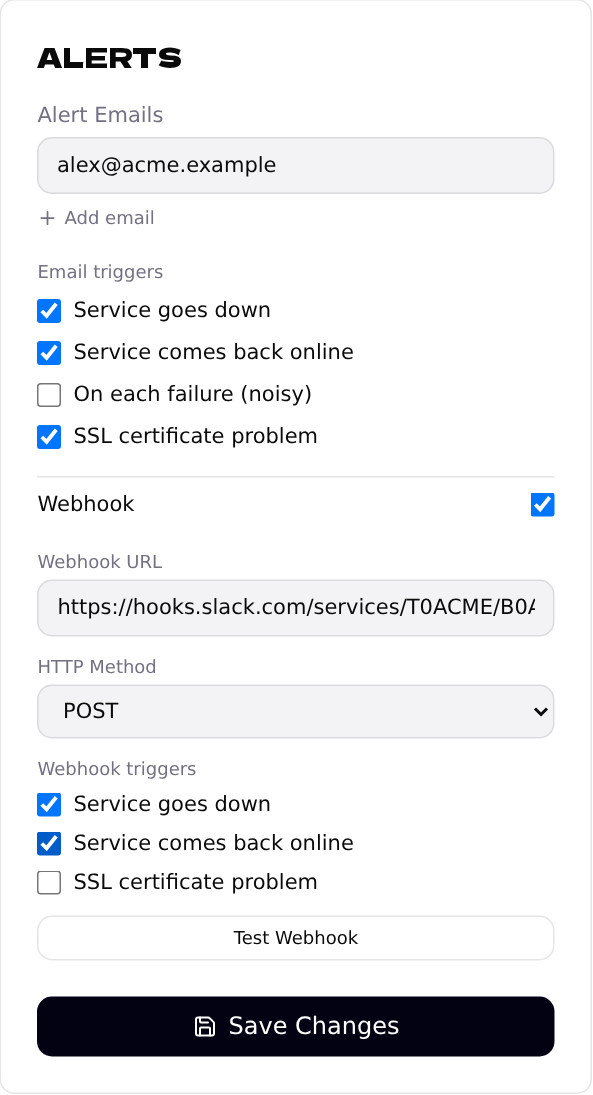
Open the endpoint, turn on Webhook in the Alerts card, paste the URL and keep the method on POST. Tick the Webhook triggers you want.
3
Test and save
Click Test Webhook. The channel should show Test notification from Upguru — your webhook is working. Then click Save Changes.
Real alerts look like Alert: https://shop.example.com is down (HTTP 503) and Recovered: … is back online.
Use the same webhook URL on all your endpoints to collect every alert in one channel.
4
Sending to your own system
Any address that accepts a JSON POST works. We send:
{
  "text": "Alert: https://shop.example.com is down (HTTP 503)",
  "event": "down",
  "url": "https://shop.example.com",
  "statusCode": 503,
  "responseMs": 412,
  "checkedAt": "Fri, 30 Oct 2026 14:02:11 UTC"
}
event is down or recovery; sslError is added for certificate problems.