1
Open your profile
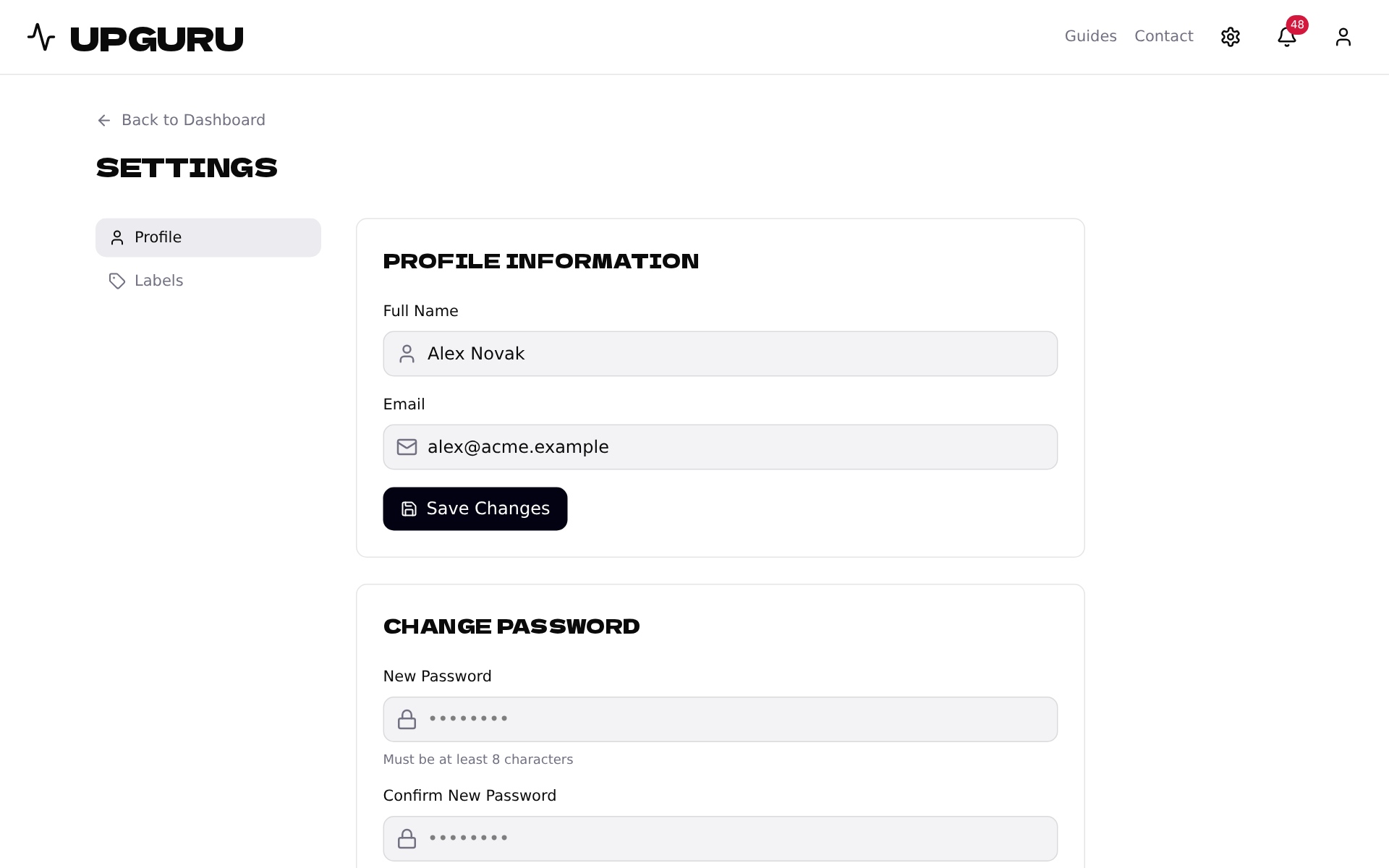
Click the gear icon in the top bar, or the person icon and then Profile.
2
Change your name or email
Edit Full Name or Email and click Save Changes. The email is the one you sign in with. You stay signed in after changing it; next time, sign in with the new address.
Alerts go to the addresses set on each endpoint, not automatically to your account email. To send them somewhere new, update them in each endpoint's Alerts card.
3
Change your password
Under Change password, enter the new password twice and click Update Password. It needs at least 8 characters.
4
Sign in with Google or Facebook
On the sign-in page, click Google or Facebook instead of typing a password. If that account uses the same email as your UPGURU account, the two are connected automatically. Otherwise a new UPGURU account is created; set a password on your profile if you also want to sign in with your email.
5
Sign out
Click the person icon in the top bar and choose Logout.